If Nevvon is integrated into your agency's AMS (Agency Management System), the new employee will be created automatically based on the info in your AMS, and you will NOT need to add or edit their info directly in Nevvon. Add the new employee to your AMS and the data will then be brought into Nevvon automatically.
Please note that this might take a few minutes-hours, depending on the specific AMS you are using and it's integration with Nevvon.
If integrated, please refrain from adding employees to Nevvon manually. Manual entries will not allow full integration that will result additional features in the integration failing (e.g. reports, completions fed into your AMS, etc.)
If your panel is NOT integrated with your AMS, please follow the below steps:
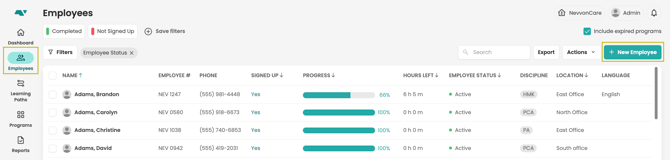
1. Go to the Employees page and click + New Employee
2. Enter the employee's phone number and click Continue.
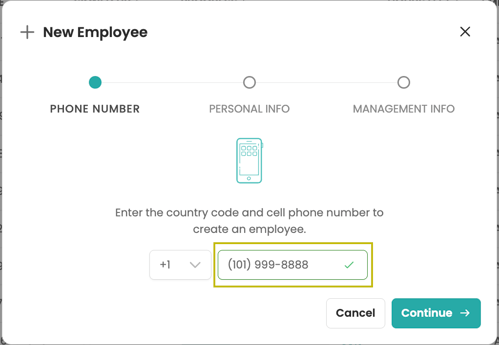
Note: If the employee already exists in the agency, a message will appear saying: "This phone number is already taken by [employee's name]." In this case, you can click on the employee's name to go straight to their profile.
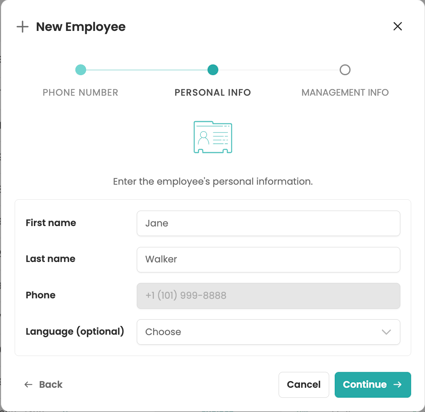
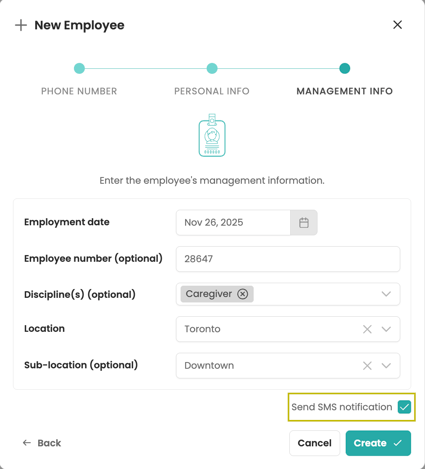
4. Fill in the employee's Management Info. If you would like to notify the employee via SMS that they were added to Nevvon, check the Send SMS notification checkbox and click Create.
You did it!
The new employee profile page will now open in a new tab.
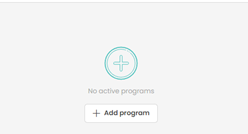
Note: If you created the employee from the employee's page, they will not be assigned to a program automatically, unless you were set up with automation to assign programs to employees. You can assign employees to a program by clicking on add to program on their profile page.